Usage Guide
Top Bar
The top bar spans the full width and contains:
- Logo (left) — links to the Vrui project site
- Title — "Vrui Management Interface", tinted to match the selected system's color
- Dark/light mode toggle (right) — switches theme; preference saved across sessions
- Docs (right) — links to this documentation
System Cards
Each configured system gets its own color-coded card in the main area.
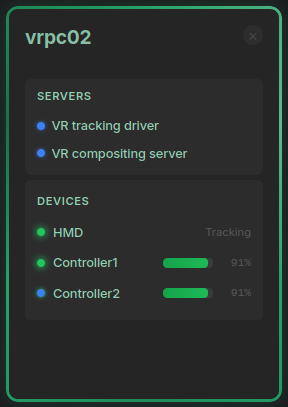
What each card shows:
- System name and connection status
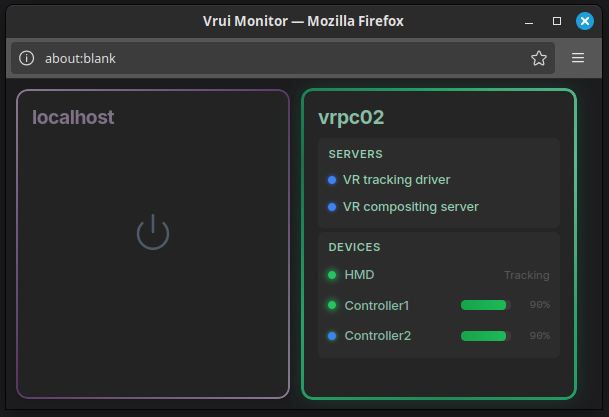
- Running servers (tracking driver + compositing server) with status monitoring dots
- Connected devices with battery levels and tracking state
Card actions:
| Action | How |
|---|---|
| Select system | Click the card |
| Rename or recolor | Click the name (non-localhost) or the palette icon in the sidebar |
| Edit IP / port | Click the IP address or pencil icon in the sidebar |
| Start servers | Click the power button (appears when servers are stopped) |
| Remove | Click × in the card header |
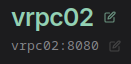
[!NOTE] The localhost system cannot be removed. Server start/stop controls are only available on localhost — remote systems are monitor-only.
Server Status
When a system's servers are running, the card shows a Servers section with a dot per server:
| Dot color | Meaning |
|---|---|
| Green | Online and responding |
| Red | Process running but not responding |
| Gray | Stopped |
If the compositing server is red on localhost, a restart button appears inline.
Device Controls
Click any device row to open an action menu:
- Ping — send a haptic vibration to physically locate the device
- Power off — shut down the device (if the hardware supports it)
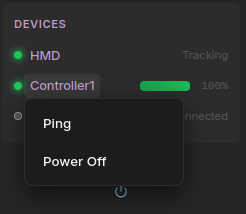
These actions work for both localhost and remote systems.
Sidebar
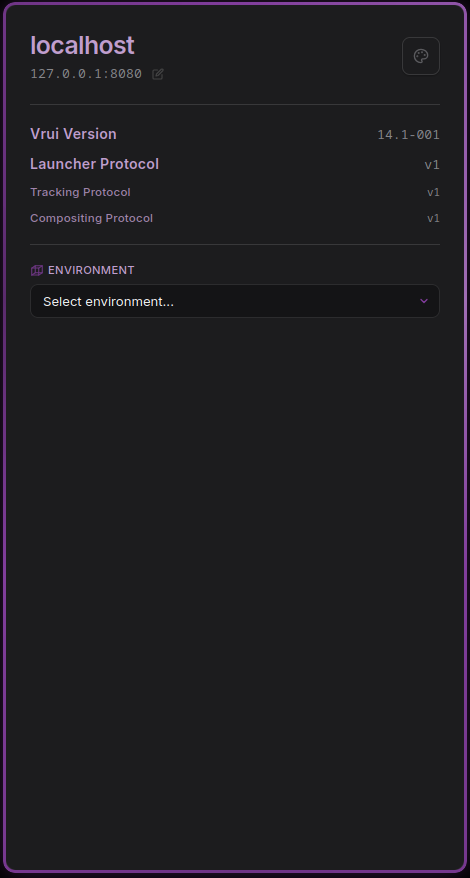
The sidebar reflects the currently selected system.
Version Info
Once the launcher responds, the sidebar displays:
| Field | Description |
|---|---|
| Vrui Version | Software version string reported by the launcher |
| Launcher Protocol | API version the launcher is running (v0 or v1) |
| Tracking Protocol | API version the device server is running |
| Compositing Protocol | API version the compositing server is running |
Protocol versions determine how the interface communicates — see Protocol Versioning for details.
Environment Dropdown
When the launcher returns a list of VR environments, a dropdown appears. Selecting one sends the environment file path to the device server to load it.
System Color
Click the palette icon in the sidebar to change the accent color for the selected system. The color picker opens immediately — pick a color and confirm in the native dialog. The color is saved and will persist on the next page load.
Console
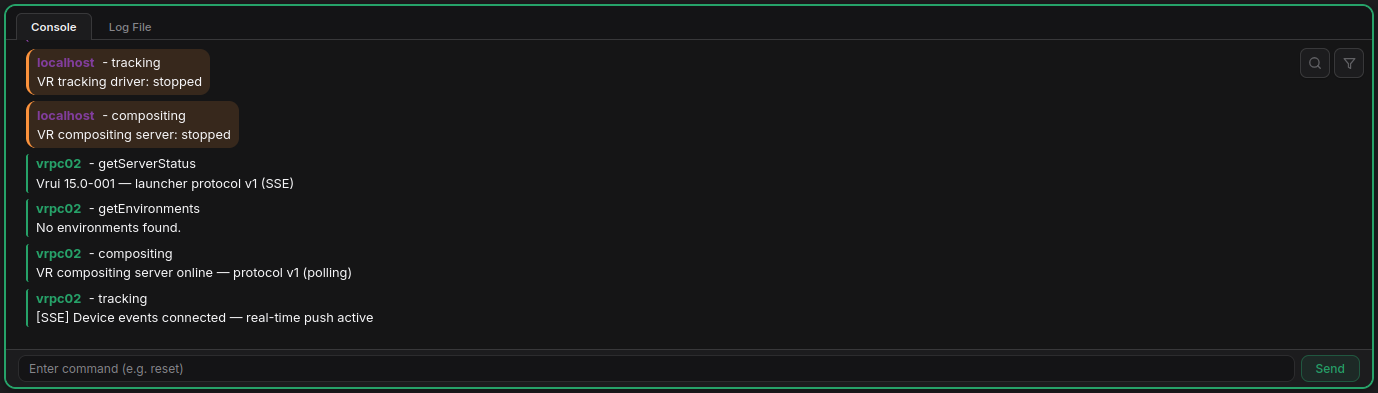
The console area at the bottom has two tabs:
Console Tab
A live log of all events, color-coded by system.
| Control | Function |
|---|---|
| Search icon | Toggle inline search bar to filter visible entries |
| Filter icon | Toggle between all systems and selected system only |
| Command input | Send a raw command to the selected system's device server |
| ↑ / ↓ arrow keys | Browse command history |
Log entries are color-coded by severity:
| Style | Meaning |
|---|---|
| Normal | Informational |
| Yellow | Warning |
| Red | Error |
| Green | Success |
Log File Tab
Displays the log file from the most recently connected server. Supports inline search via the search bar at the bottom.
Mini Monitor
Click the monitor icon (top-right of the system cards area) to pop out a detachable window that mirrors all system cards. Useful for a secondary display. The mini monitor respects the current theme.
Default Ports
| Port | Service | Purpose |
|---|---|---|
| 8080 | VRServerLauncher | Server lifecycle, environments, event stream |
| 8081 | VRDeviceServer | Device monitoring, haptic control, event stream |
| 8082 | VRCompositingServer | Compositing status |
Each system can have independently configured ports via the edit menu.